This time, let's look at Run Command in AWS Systems Manager.
What is AWS Systems Manager?
Systems Manager is a management tool that lets you perform operations on AWS resources safely and at scale.
Using Run Command, one of Systems Manager's automation features, eliminates the need for a bastion host, SSH, or remote PowerShell, simplifying administrative work. — official AWS Amazon docs
It fits many operational use cases — for example when you don't want to allow SSH access for security reasons, or want to simplify the setup by not running a bastion host.
Hands-on
- Create an IAM role.
- Create an EC2 instance.
- Update the Systems Manager Agent.
- Run a shell script using Run Command.
1. Creating the IAM role
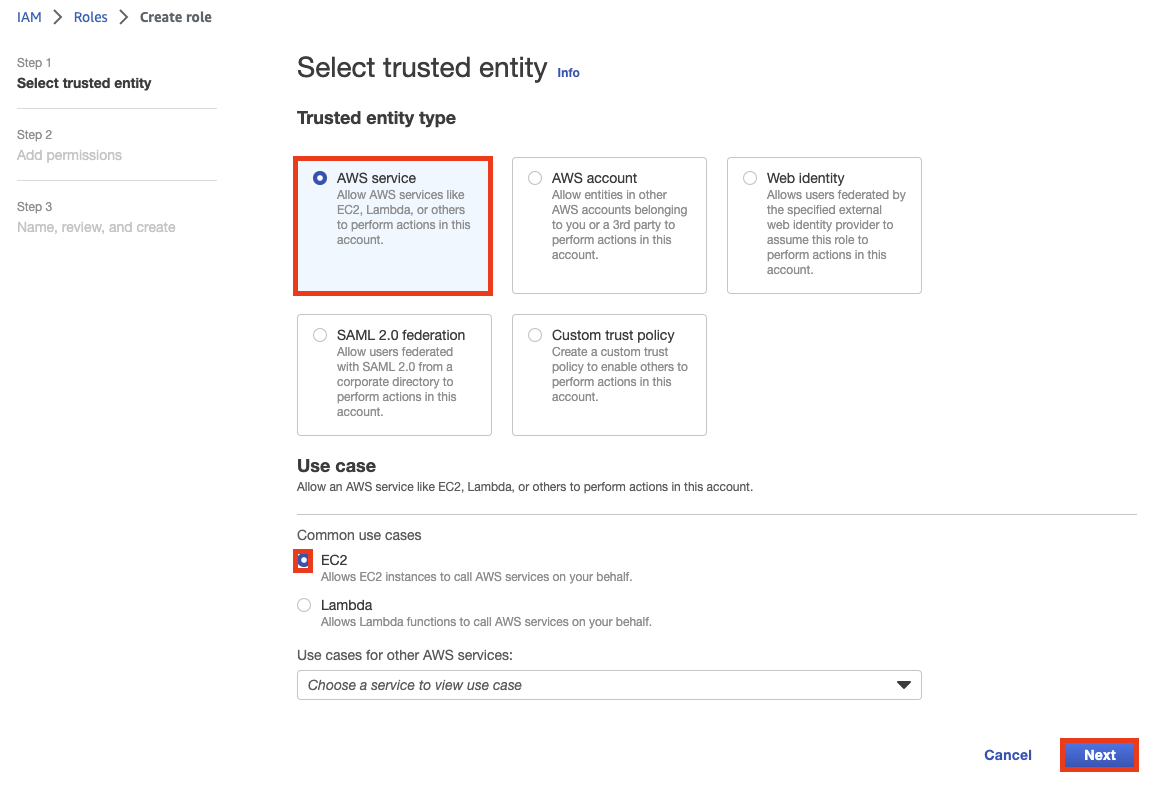
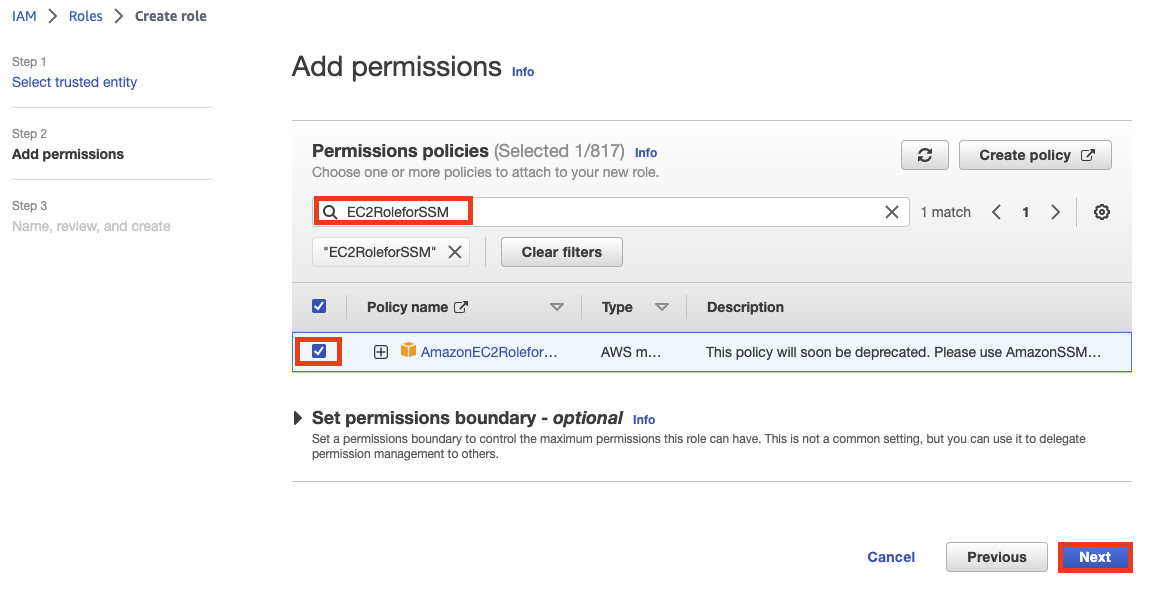
Search for AmazonEC2RoleforSSM, check it, press Next, and create the role — that's it.
+Addendum) The current standard setup is to use AmazonSSMManagedInstanceCore rather than AmazonEC2RoleforSSM.
2. Creating the EC2 instance
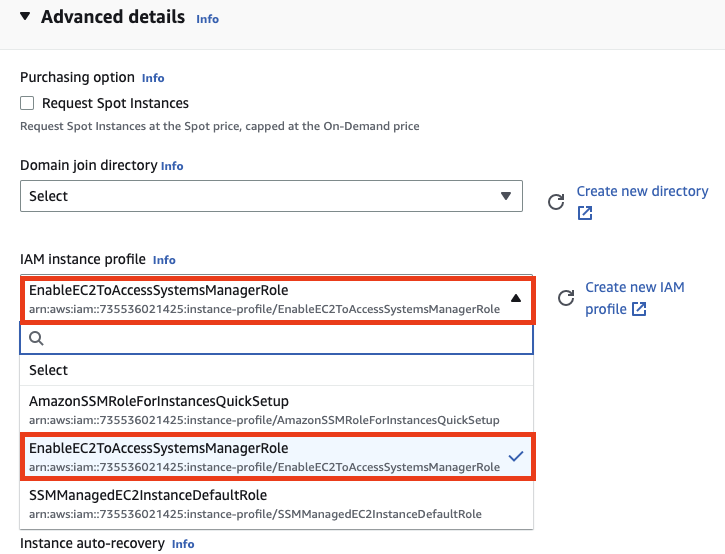
Leave everything else at defaults and just set IAM instance profile under Advanced details to the role we just made. Since no key pair is needed, you don't have to create one.
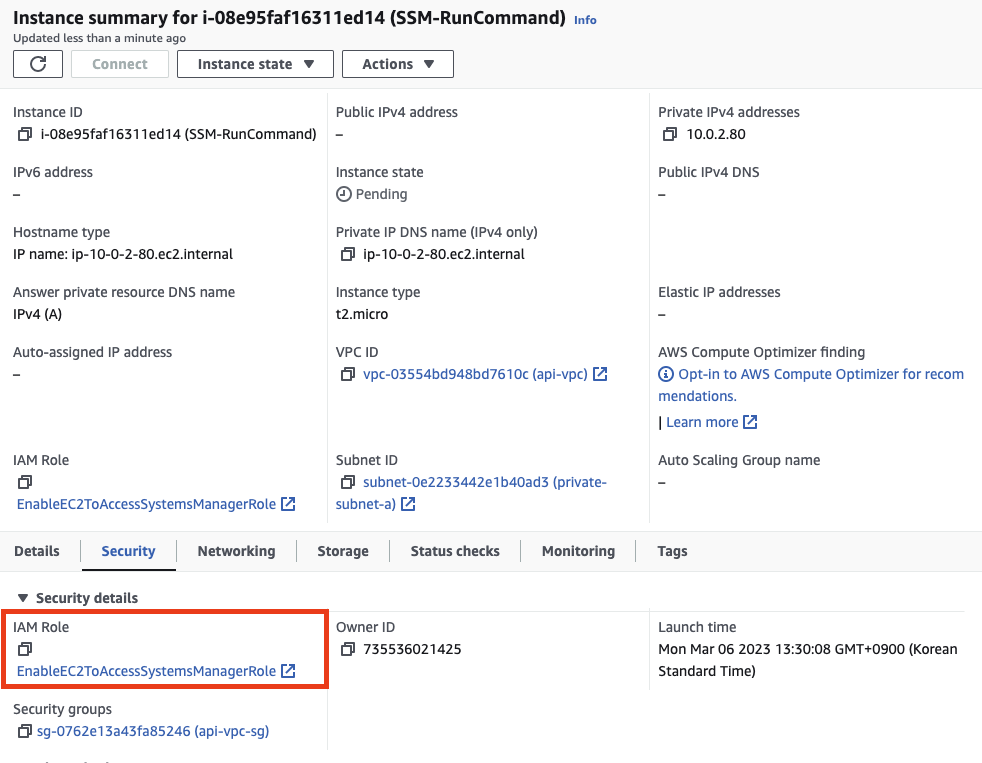
If the IAM Role is properly assigned as above, you've succeeded.
3. Systems Manager Agent Update
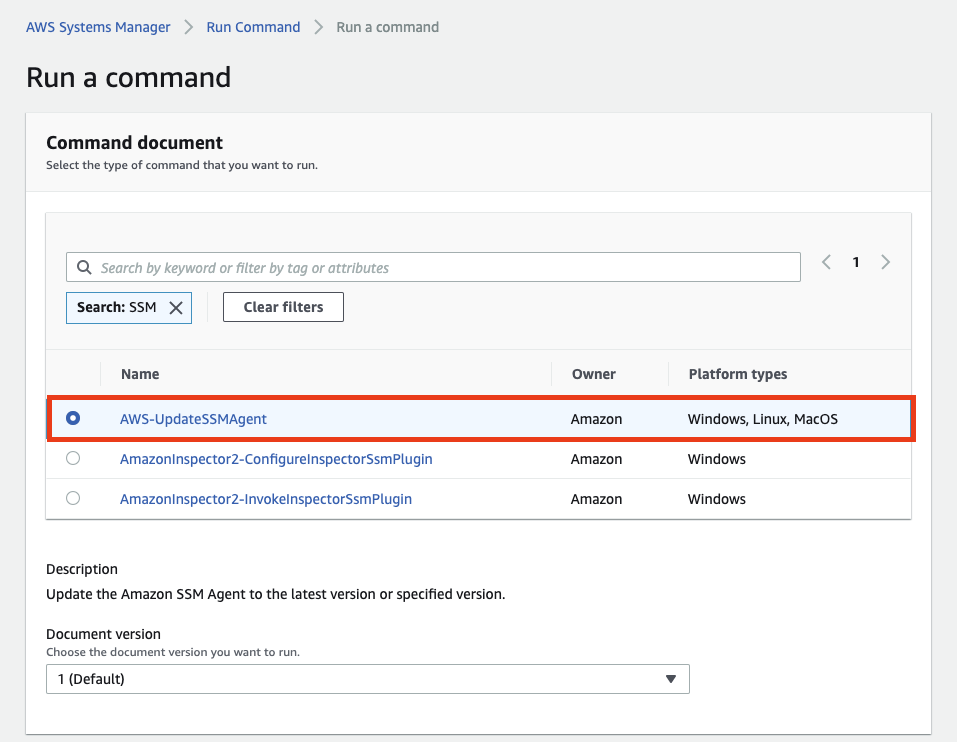
In AWS Systems Manager > Run Command > Run a command, search for SSM and click AWS-UpdateSSMAgent.
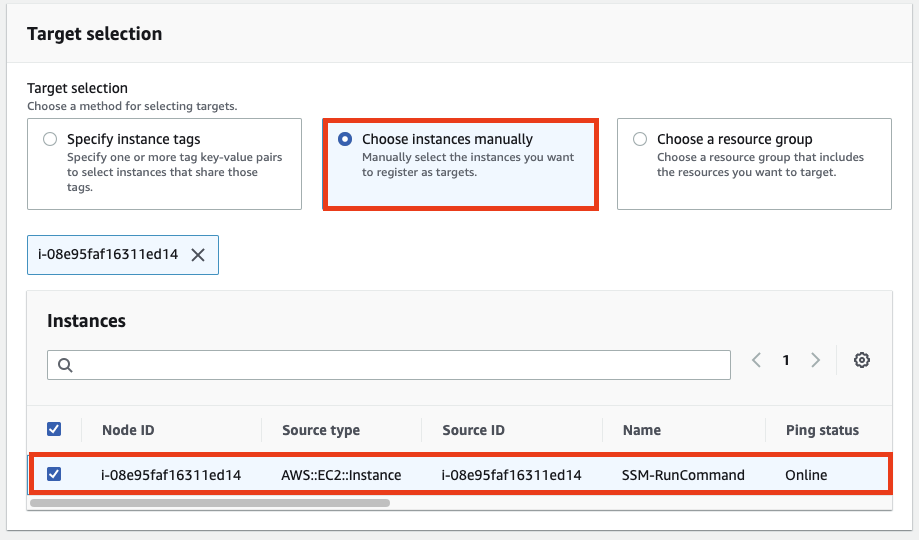
Below that, in Target selection, click Choose instances manually, select the activated EC2 we made earlier, and press Run to execute.
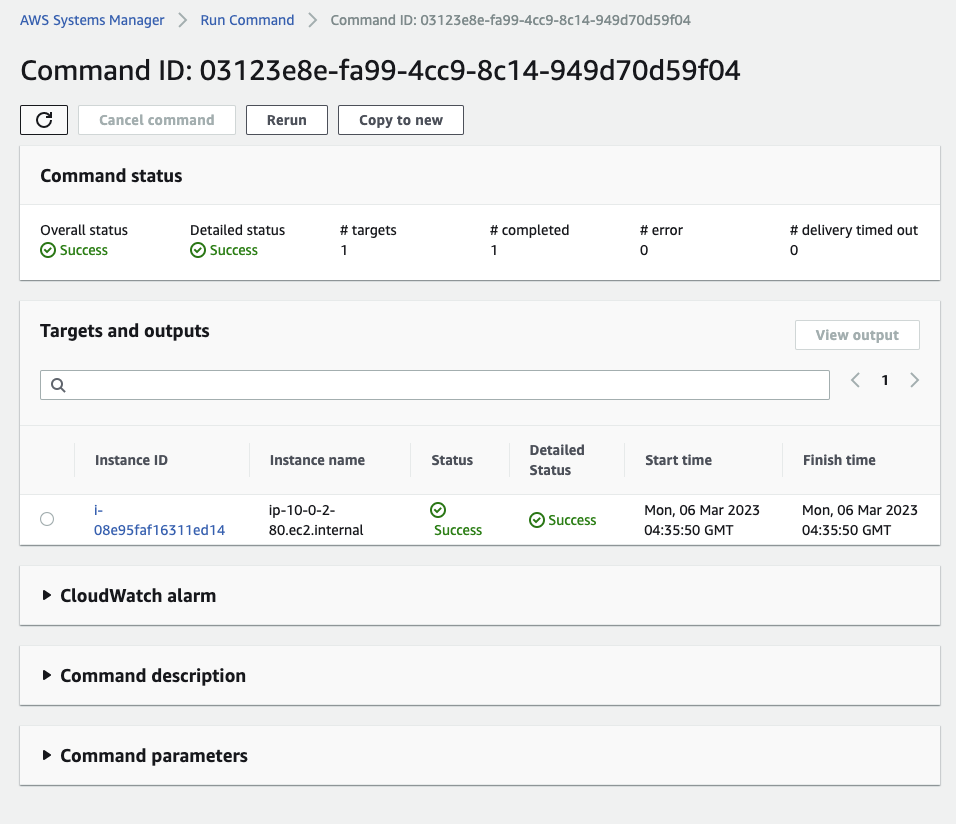
You can see it succeeds. In Targets and outputs, check the instance and press View output to see the result.
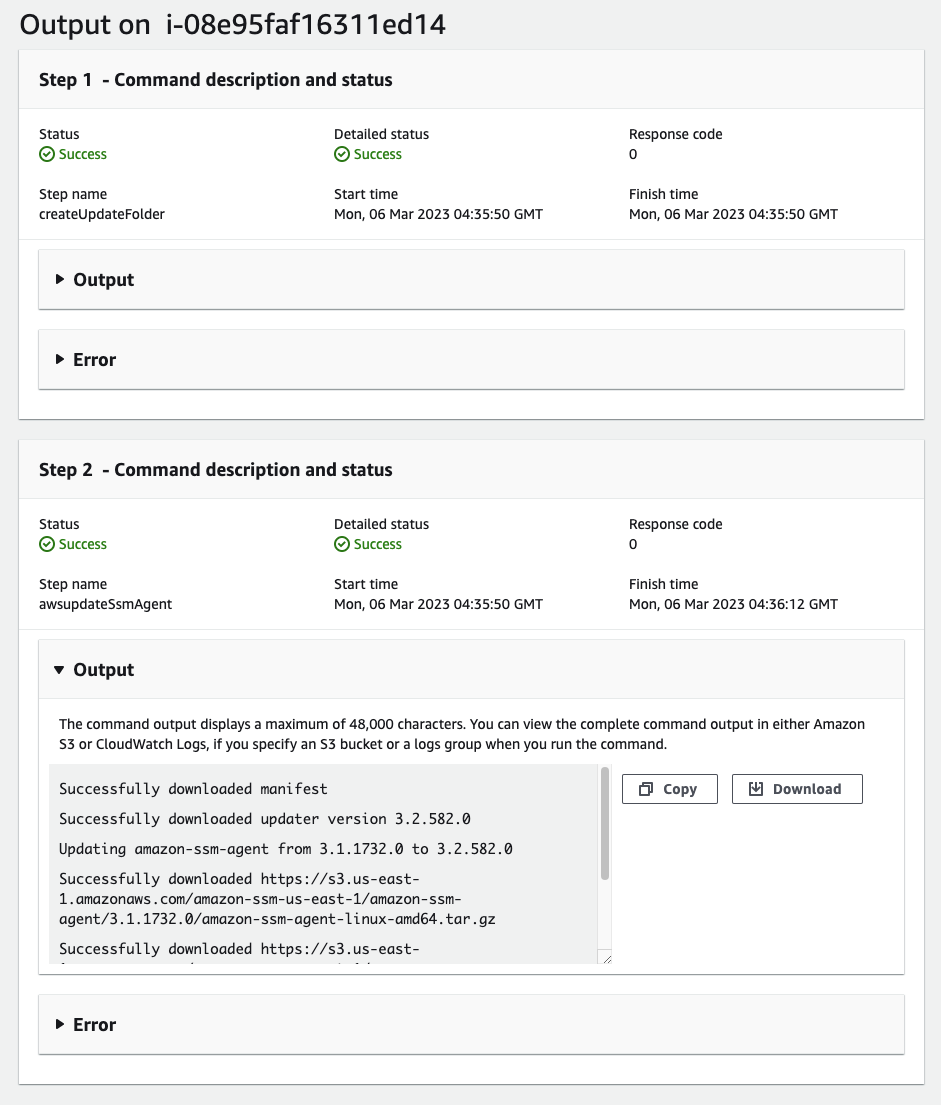
We confirmed the update completed successfully.
4. Running a shell script with Run Command
Since we created an EC2 instance running the Systems Manager Agent, we can automate administrative work and manage the instance. In this procedure we run a pre-packaged command called a document to upgrade the agent. It's a good idea to update the Systems Manager Agent when creating a new instance.
Go in the same way as before.
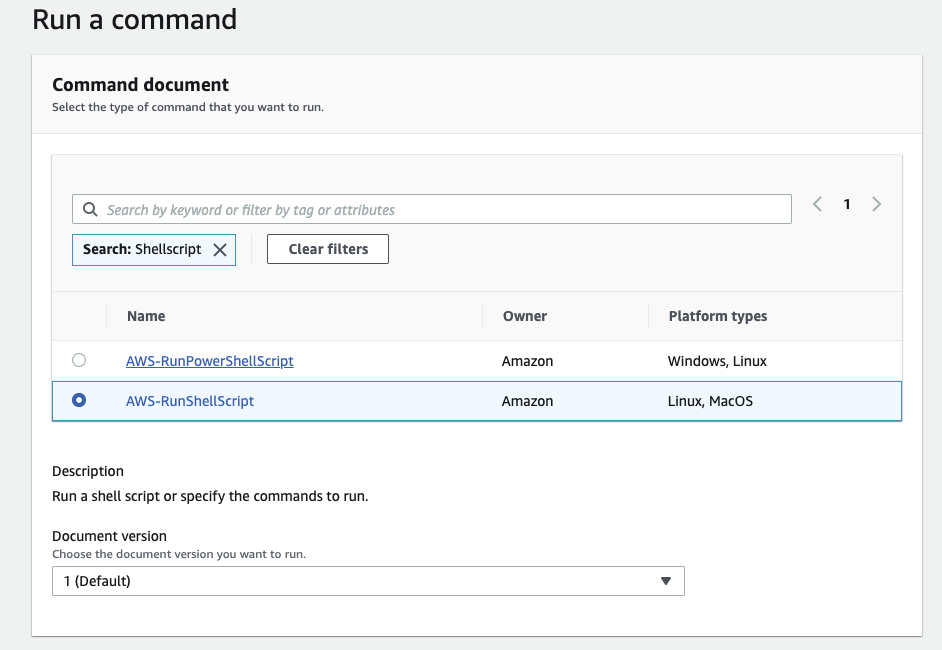
Unlike last time, select AWS-RunShellScript.
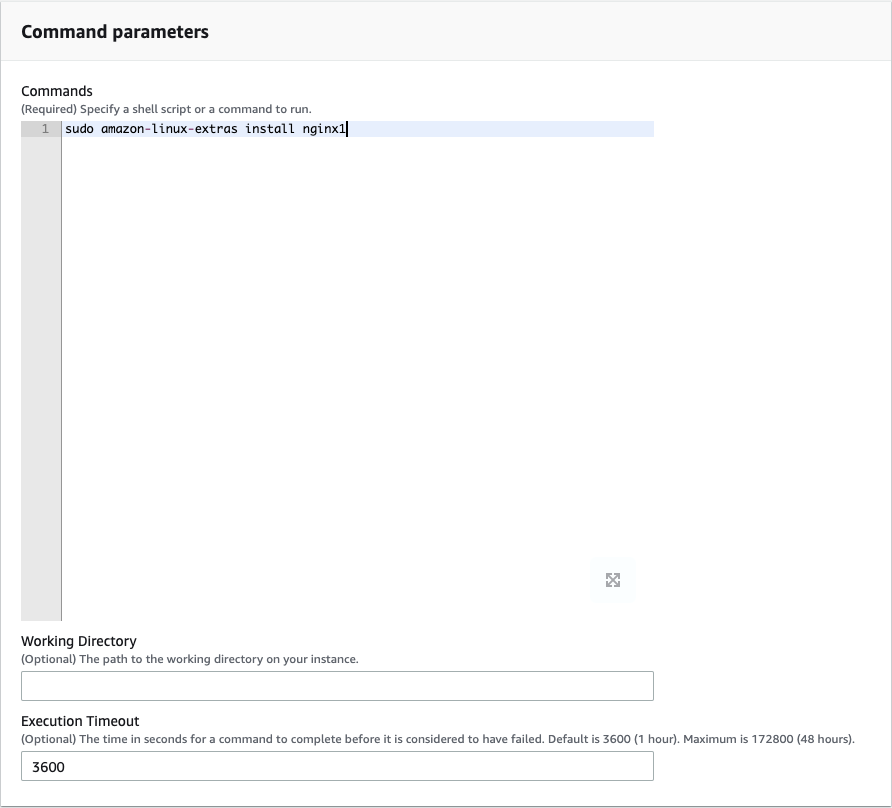
For a test, let's install nginx using sudo amazon-linux-extras install nginx1. Then, like before, select the activated instance and press Run.
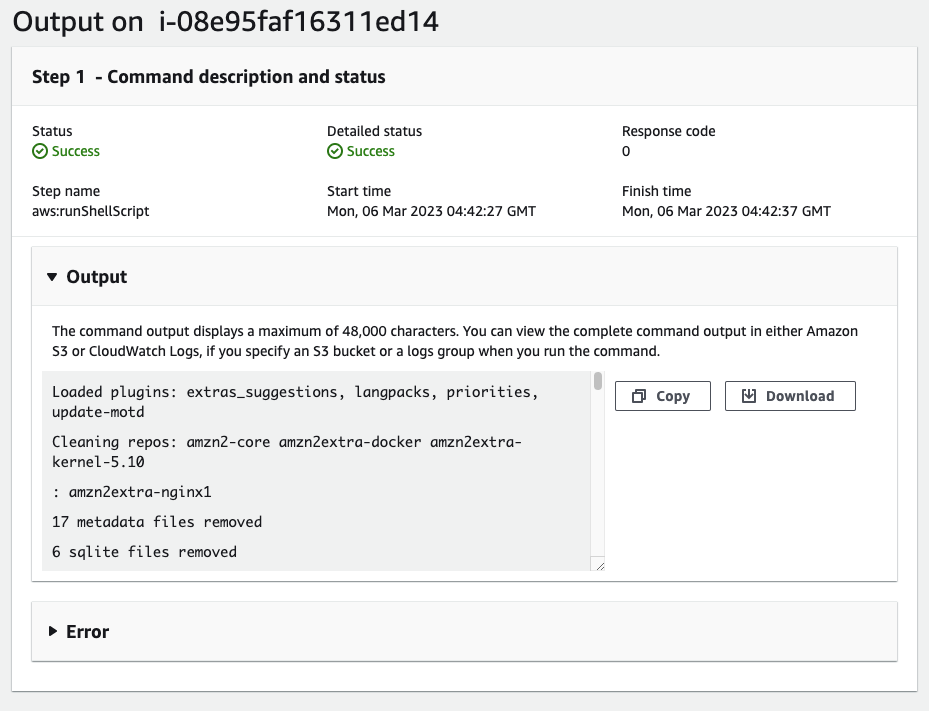
It succeeded like this. Let's connect via CLI to verify.
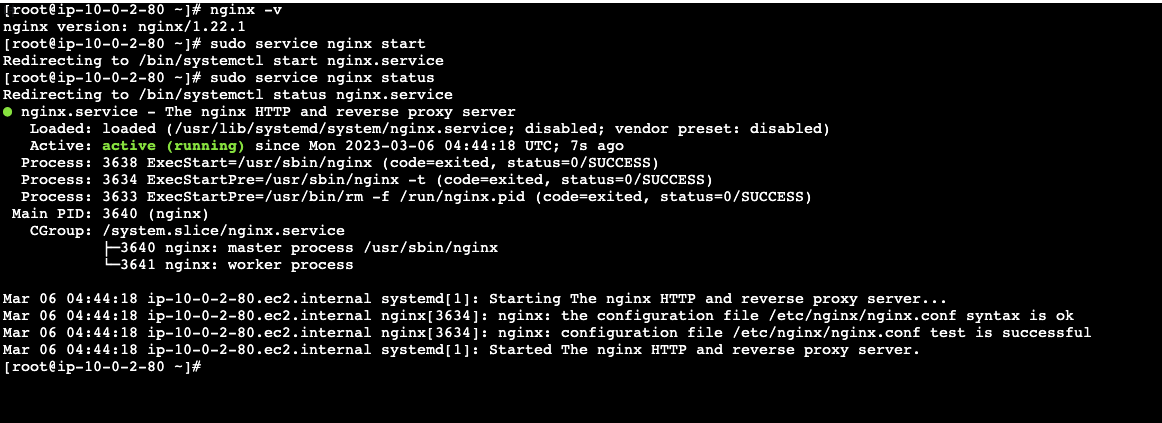
nginx installed and runs perfectly. That wraps up the hands-on for AWS Systems Manager's Run Command feature.
References
https://dev.classmethod.jp/articles/aws-systems-manager-run-command-ec2-instance/
AWS Systems Manager を使用してEC2インスタンスでRun Commandを実行する | DevelopersIO
こんにちは、yagiです。 本日は、「AWS Systems Manager を使用してEC2インスタンスでRun Commandを実行する」内容について記載します。 AWS Systems Managerとは? Sys …
— dev.classmethod.jp
Original (Korean): tistory — published 2023-03-06, migrated to this blog. This translation was generated with the help of AI.