What is AWS Systems Manager?
How Systems Manager works
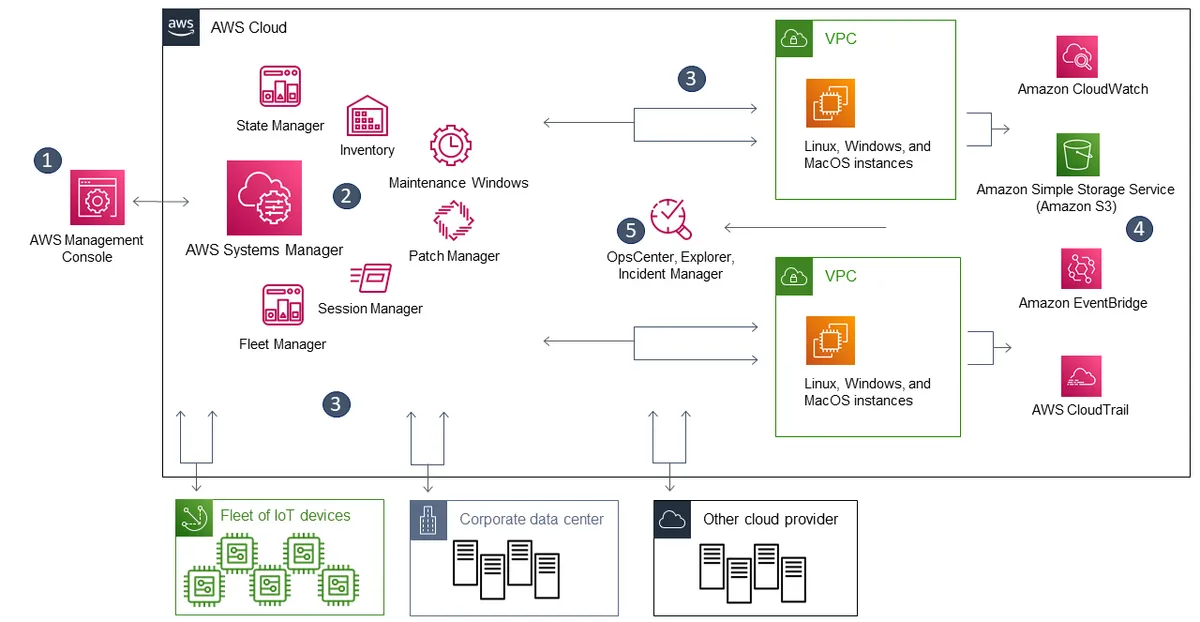
- Access Systems Manager — use one of the available options for accessing Systems Manager (console, CLI, SDK).
- Choose a Systems Manager capability — identify the capability that can help perform the operation you want on your resources. The diagram shows only a few of the capabilities IT developers and DevOps staff use to configure and manage resources.
- Verification and processing — Systems Manager verifies that your AWS Identity and Access Management (IAM) user, group (OU), or role has permission to perform the specified operation. When the target is a managed node, the Systems Manager Agent (SSM Agent) running on the node performs the work. For other resource types, Systems Manager performs the specified operation itself or communicates with other AWS services to perform it on Systems Manager's behalf.
- Reporting — the status of Systems Manager, the SSM Agent, and the other AWS services performing operations on Systems Manager's behalf is reported. Systems Manager can send status details to other AWS services.
- Systems Manager operations management capabilities — when enabled, the operations management capabilities (Explorer, OpsCenter) and Incident Manager aggregate operational data or create artifacts in response to events or errors on your resources. These artifacts include operational work items (OpsItems) and incidents. The operations management capabilities provide operational insight into applications and resources plus automated remediation solutions to help resolve problems.
Summary: if something is better than what you have, switch to it!
Accessing EC2 instances with AWS SSM (SSH replacement) — Session Manager
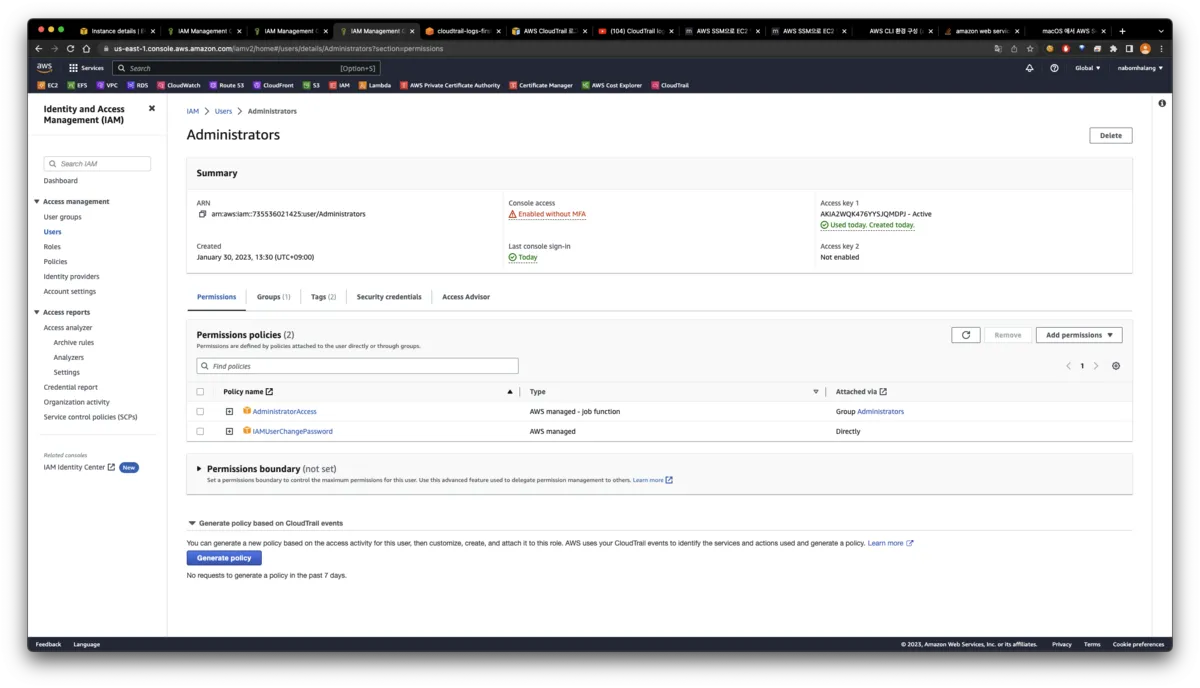
This assumes you've created a user, issued an Access Key, and connected it to the AWS CLI.
Let's pre-create the Role in IAM that will attach to EC2.
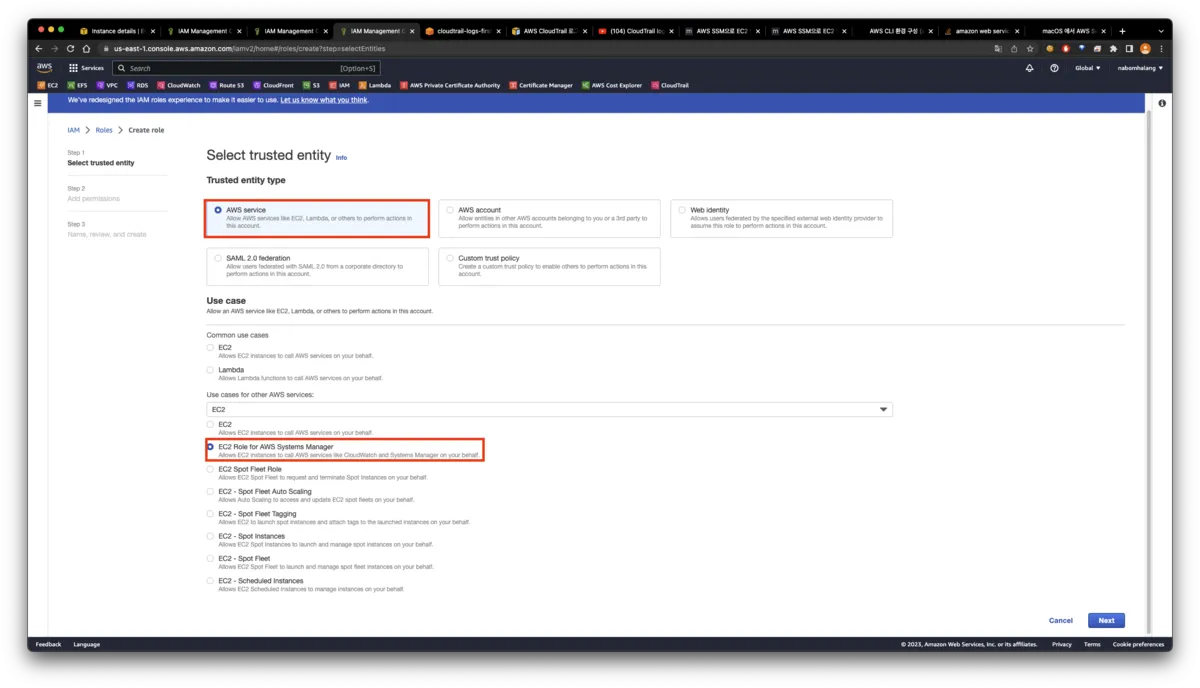
Configure it as above and press Next. Here you must choose EC2 Role for AWS Systems Manager.
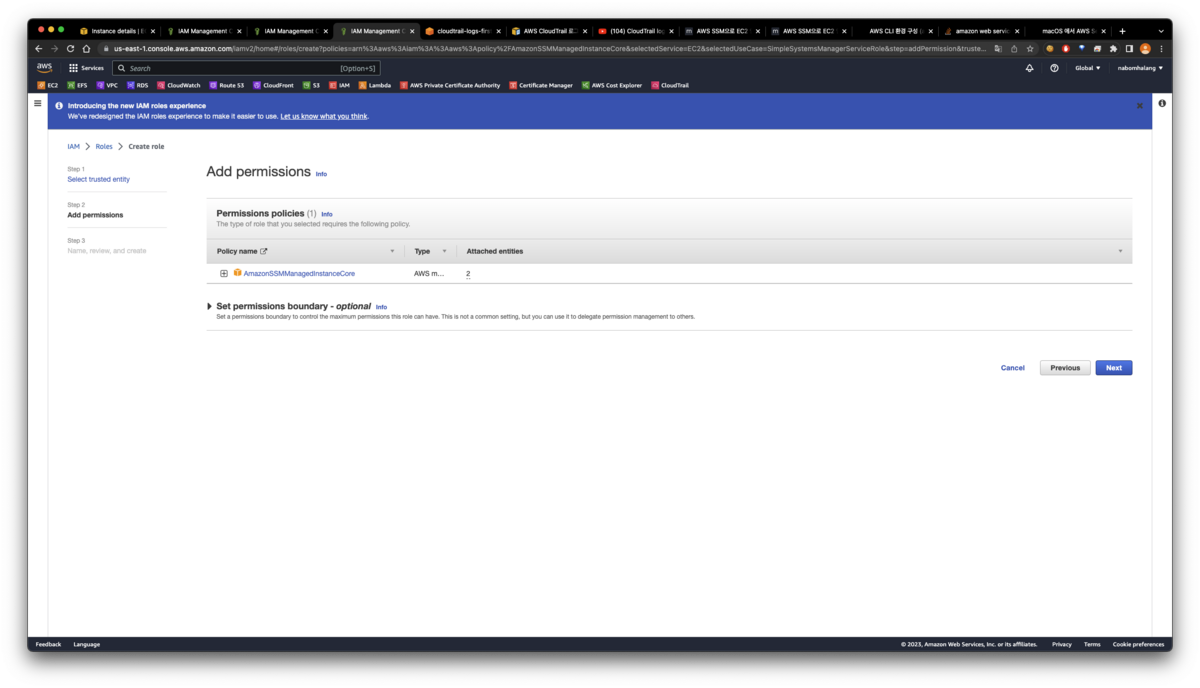
If you followed along, you'll see the AmazonSSMManagedInstanceCore permission was added without any extra configuration. This permission is all you need. Press Next, enter just the Role name, and press Create Role.
Now let's move to EC2 and create a private instance.
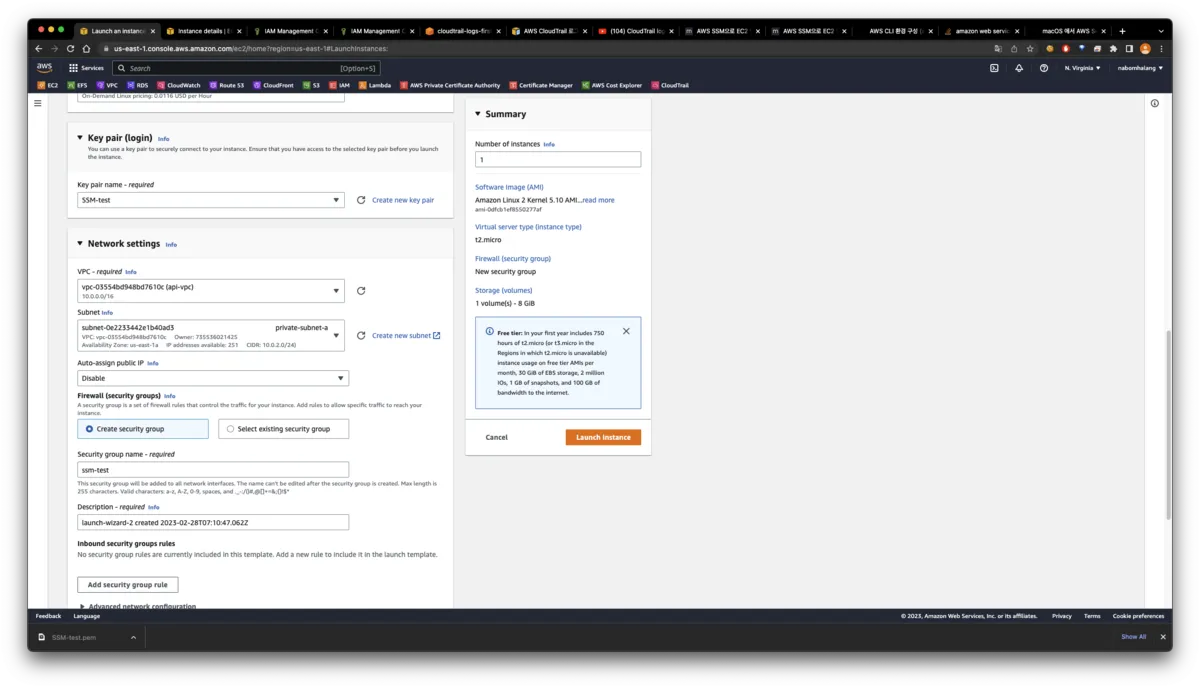
For the EC2 settings I made a separate key pair as above, created a VPC, placed it in the private-a zone, and in security groups opened only the basic ports related to web, DB, and SSH — 22, 3306, 80, 443.
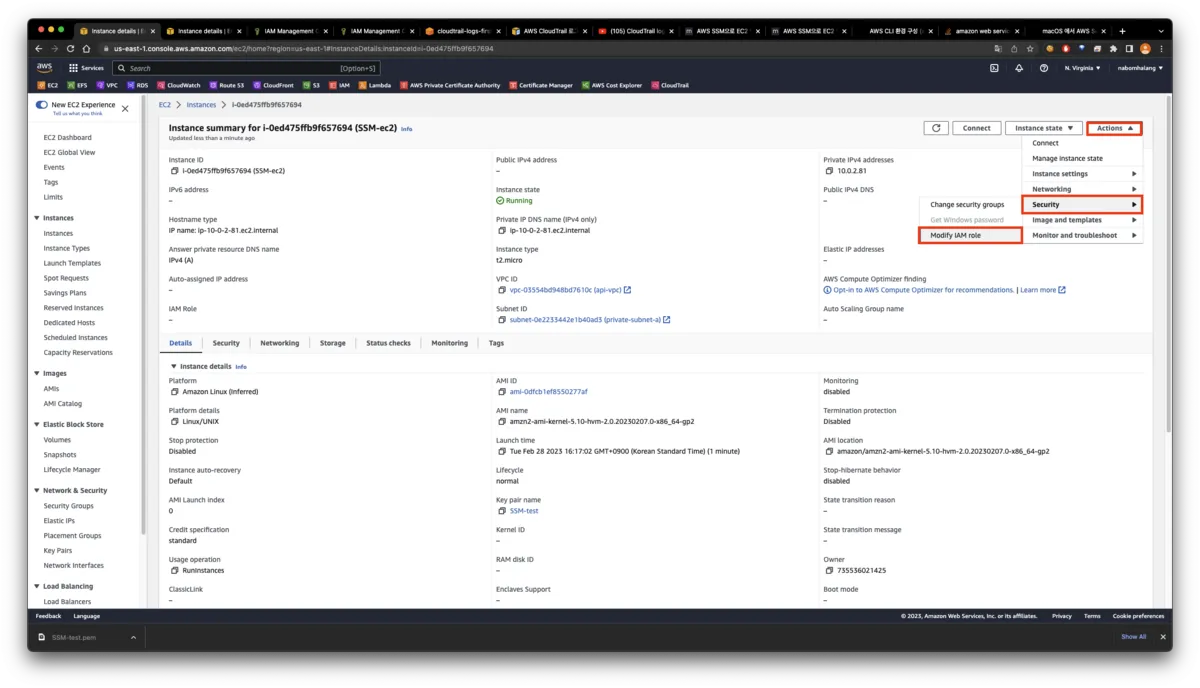
Then click the EC2 you made, go into its settings, and press Modify IAM role.
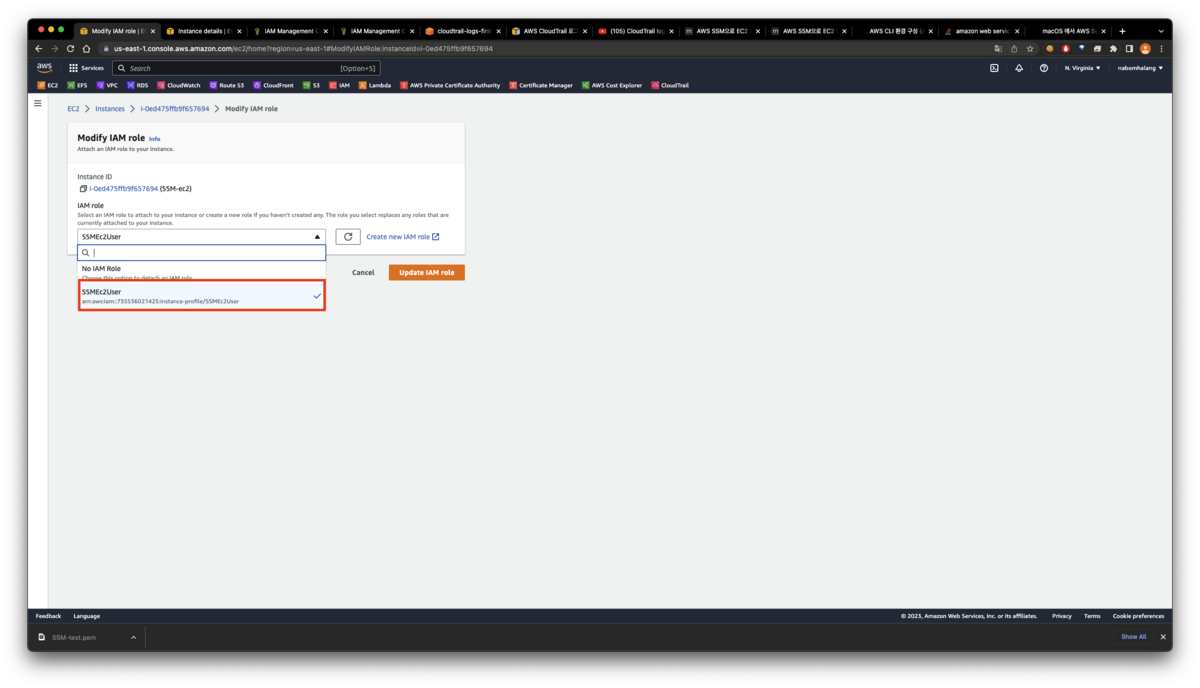
You can see the IAM role we made earlier is there. Select it and press Update IAM Role.
Then, trying an SSH connection as a test naturally fails — there's no public IP. And since there's no bastion EC2 either, connecting is impossible.
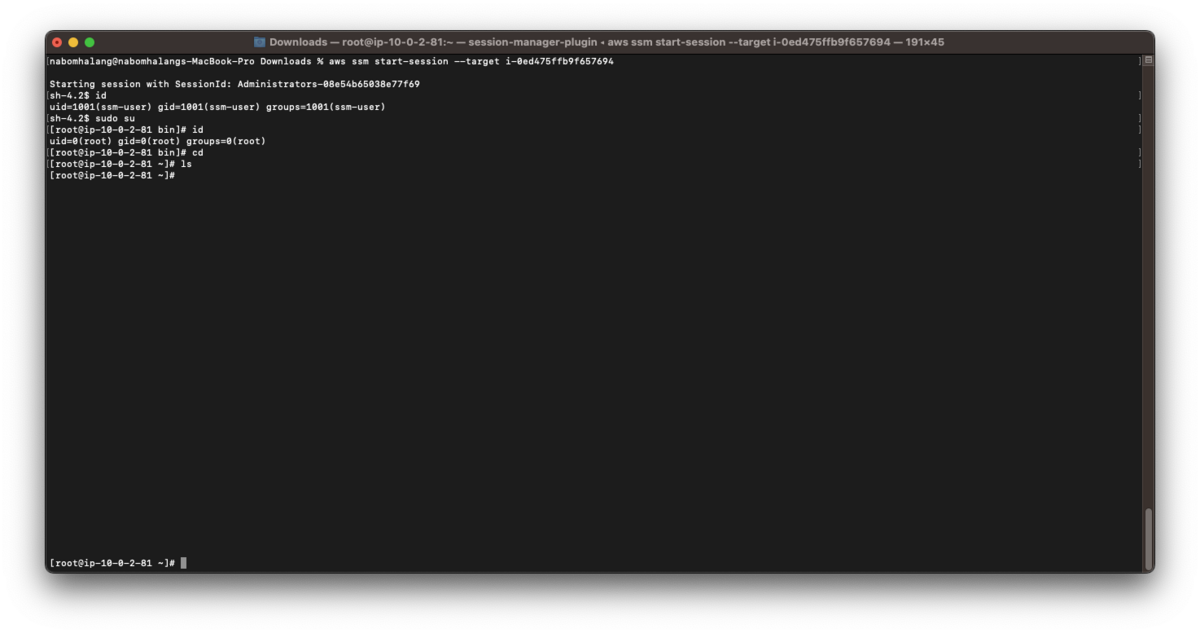
But if you've followed along this far, entering "aws ssm start-session --target <instances ID>" connects just fine.
+) Additional setting — (2023-02-17) announcement: enable AWS Systems Manager by default on all EC2 instances in an account
Link
Announcing the ability to enable AWS Systems Manager by default across all EC2 instances in an account
AWS Systems Manager customers can now use the Default Host Management Configuration (DHMC) agent to enable Systems Manager in a single action and configure permissions for all EC2 instances in the account.
— aws.amazon.com
In this update (2023-02-17), a new setting called Default Host Management Configuration (DHMC) was added to AWS Systems Manager.
DHMC is configured by specifying a permission (IAM role) in SSM's Fleet Manager. The SSM Agent then obtains credentials from the role set in DHMC instead of an instance profile, enabling SSM's various features.
- Existing behavior
- A predefined instance profile is set on EC2 instances using SSM
- The SSM Agent operates with the permissions of that instance profile to enable SSM's various features.
- Behavior when using DHMC
- An instance profile is no longer required on EC2 instances that use SSM.
- If an instance profile is configured on the EC2 instance, the SSM Agent operates with the instance profile's permissions to enable SSM's various features.
- If no instance profile is set on the EC2 instance, the SSM Agent obtains credentials from the role (IAM role) set in DHMC to enable SSM's various features.
Simply put, it's "the default rule that acts as a fallback when the EC2 has no profile".
※ Caution) The SSM Agent must be Ver. 3.2.582.0 or later. Earlier SSM Agents don't support DHMC.
Trying it yourself
First, create the IAM role to configure in DHMC.
Create it with AWS's AmazonSSMManagedEC2InstanceDefaultPolicy policy. This policy is roughly identical to AmazonSSMManagedInstanceCore, except the two ssm:getParameter(s) permissions are not allowed.
If you also want the EC2 instance to load from SSM Parameter Store, it's better to build the policy based on AmazonSSMManagedInstanceCore.
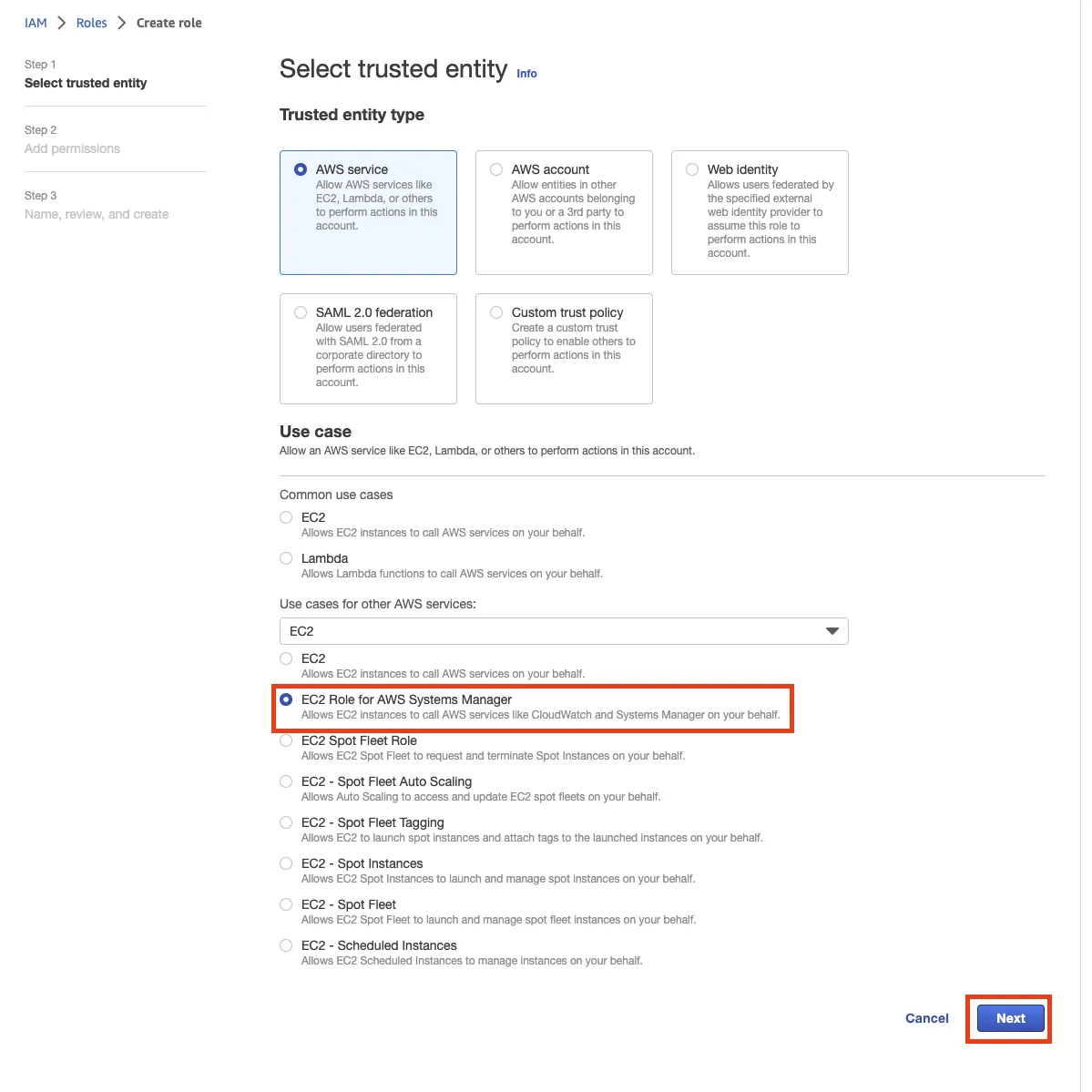
I'll name it SSMManagedEC2InstanceDefaultRole. Keep pressing Next to create it, then click the created role to open it.
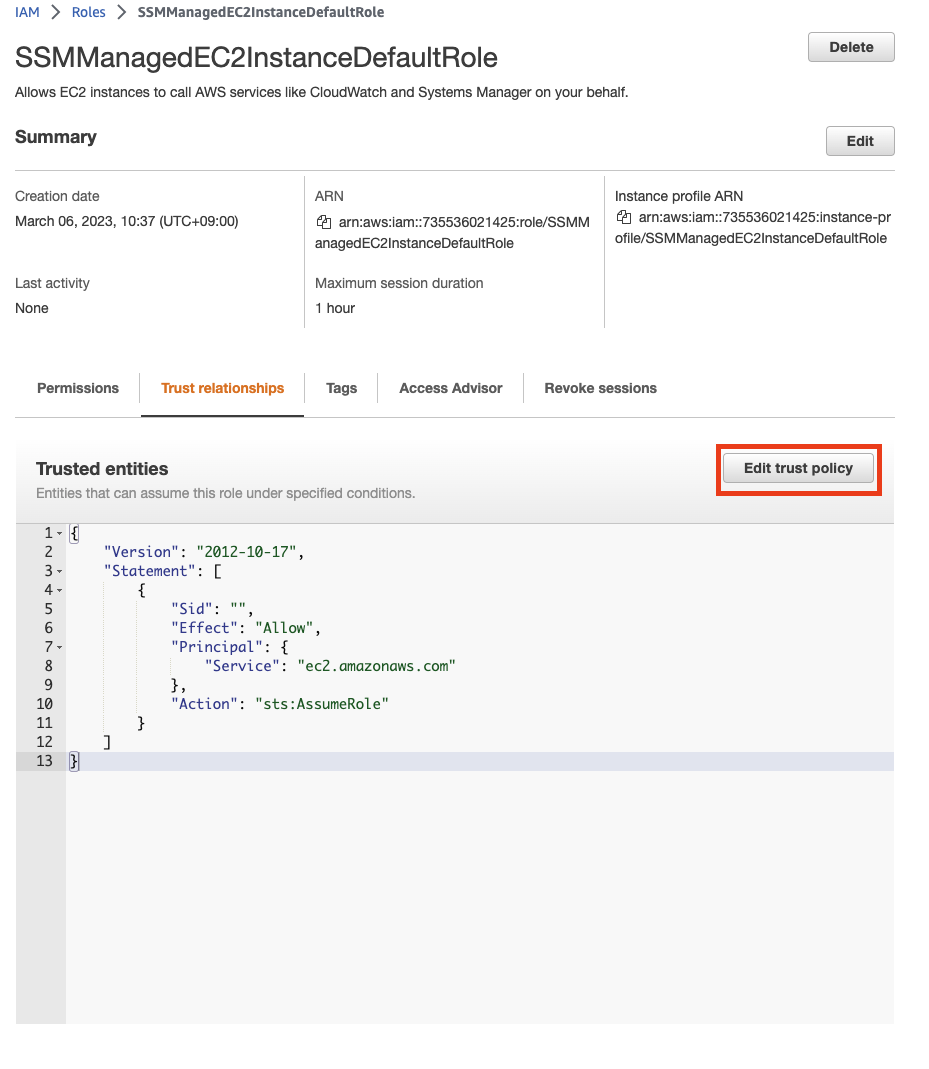
Click SSMManagedEC2InstanceDefaultRole -> Trust relationships -> Edit trust policy.
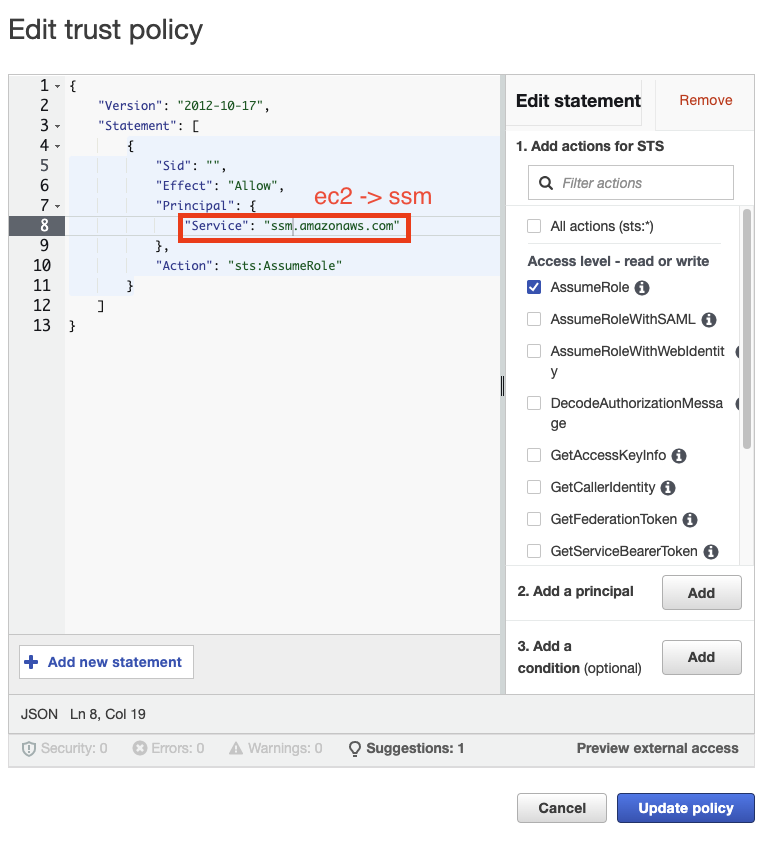
Change ec2.amazonaws.com -> ssm.amazonaws.com and press Update policy. Now let's go configure DHMC.
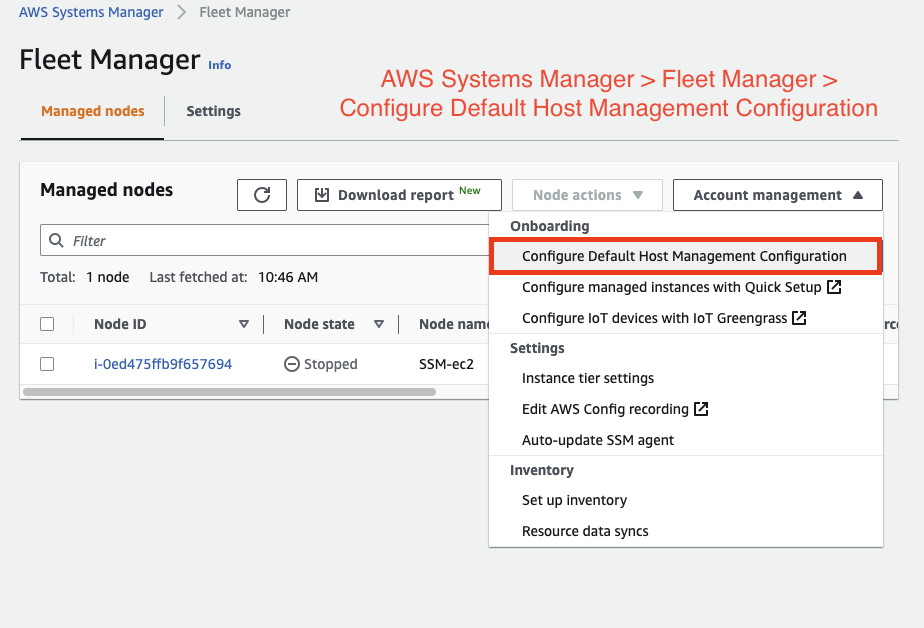
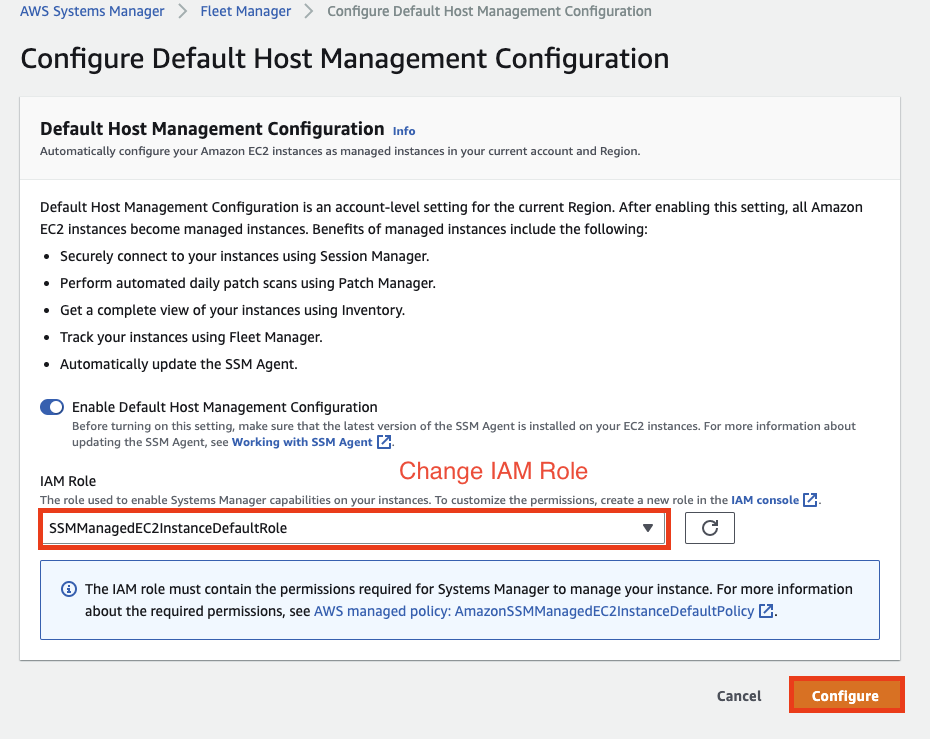
Change the IAM Role as in the picture above and press Configure — DHMC setup is done. Now create the EC2.
When creating the EC2, you don't need to set a profile. Configure instance metadata to use both V1 and V2. And put the following code into User-data.
#!/bin/bash
cd /tmp
sudo yum install -y https://s3.amazonaws.com/ec2-downloads-windows/SSMAgent/latest/linux_amd64/amazon-ssm-agent.rpm
sudo systemctl enable amazon-ssm-agent
sudo systemctl start amazon-ssm-agent
Official docs
Installing the Systems Manager Agent on EC2 Linux instances
How do I install the AWS Systems Manager Agent (SSM Agent) when launching an Amazon EC2 Linux instance? Last updated: January 31, 2023. When launching an Amazon Elastic Compute Cloud (Amazon EC2) Linux instance
— aws.amazon.com
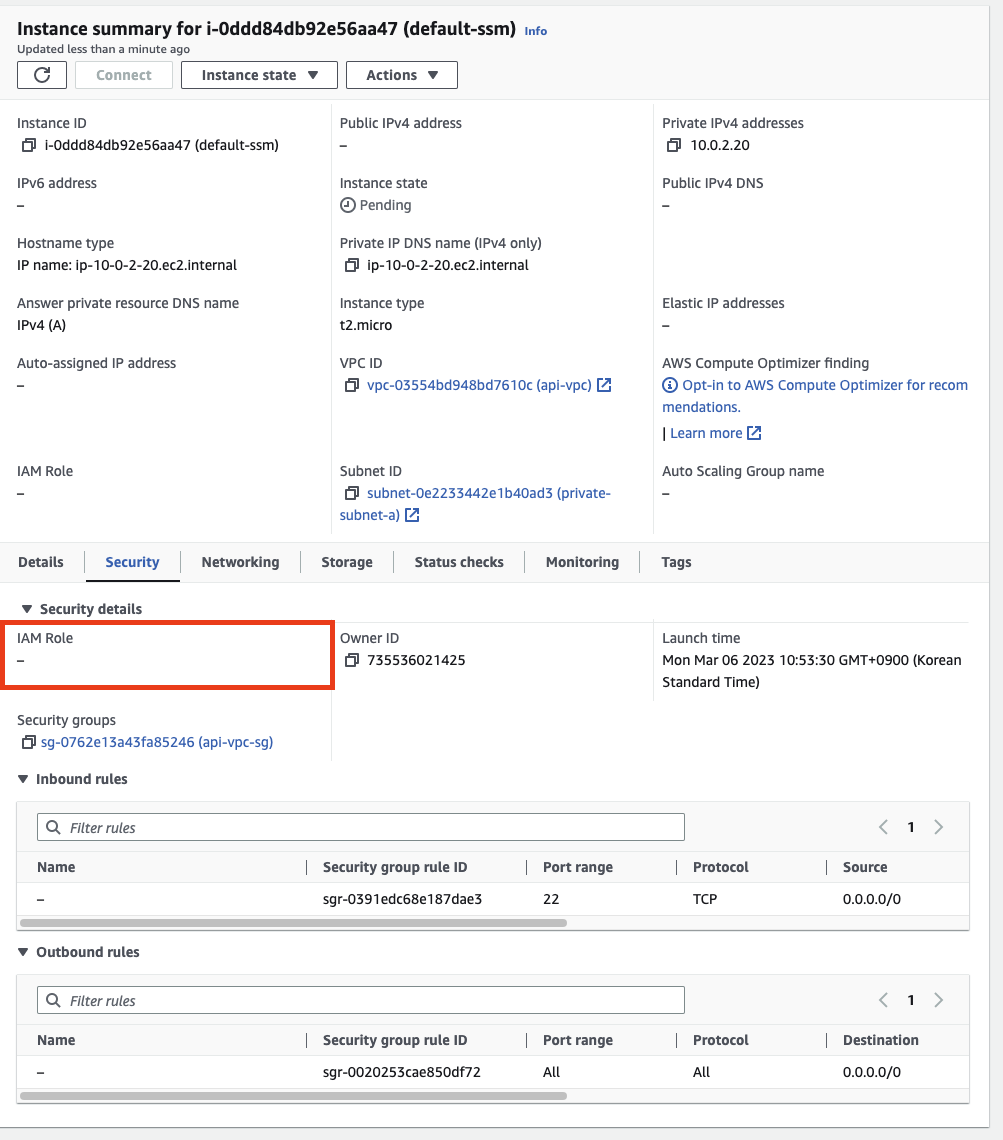
You can confirm no IAM Role is set.
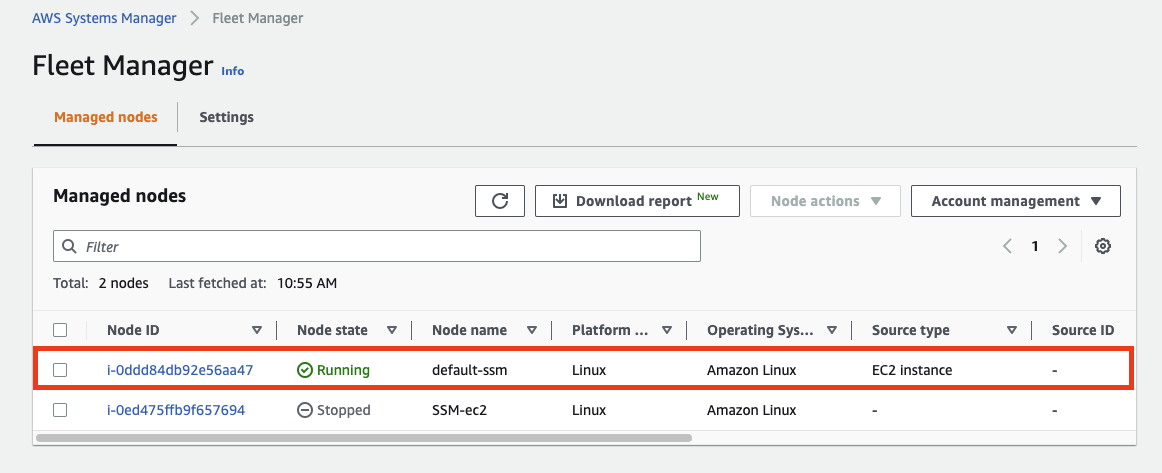
With DHMC enabled, SSM Host Manager recognizes it as a managed node even in this state.
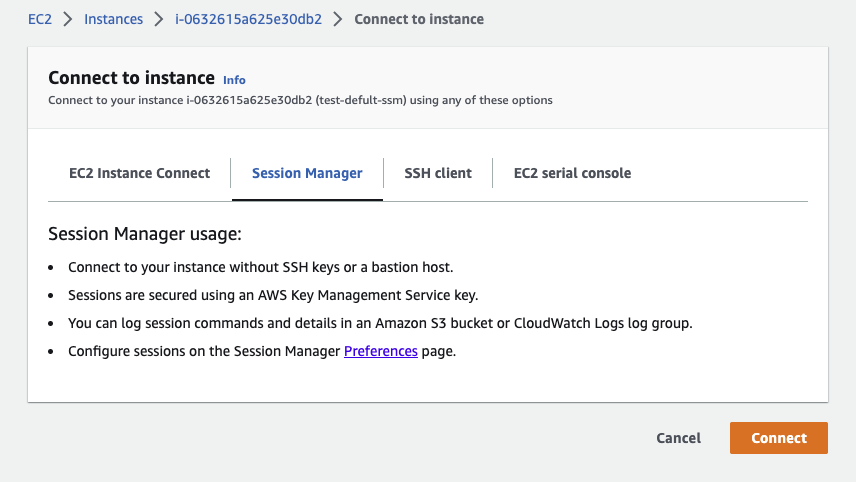
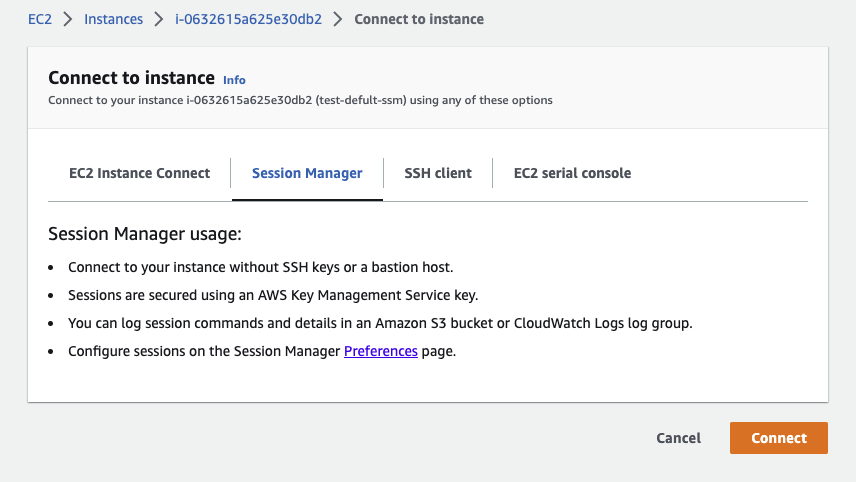
Then go into Session Manager and press Connect — you can confirm it connects. You can also use the CLI as we did above.
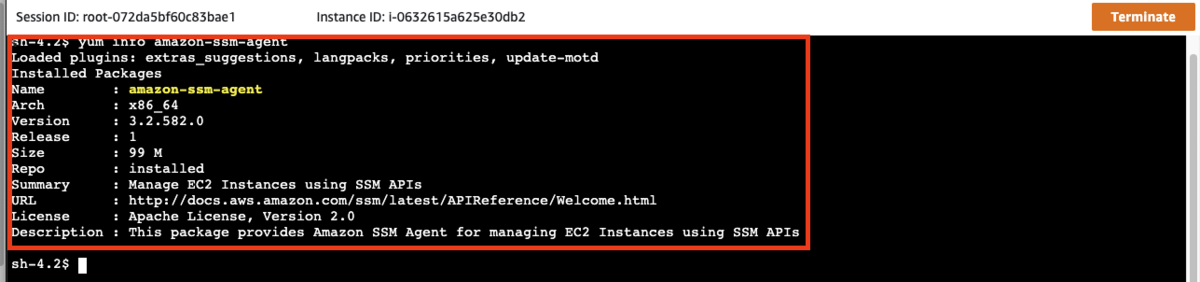
Typing yum info amazon-ssm-agent showed the correct version.
Original (Korean): tistory — published 2023-02-28, migrated to this blog. This translation was generated with the help of AI.