This time I'll briefly organize Vim, which is used often both for server administration and for development.
What is Vim?
Vim is a vi-compatible text editor created by Bram Moolenaar. While compatible with vi, Vim adds a wide range of its own features for the user's convenience. Its strengths in particular: freely customizing the editing environment with Vim script and the like, extended regular-expression syntax, powerful syntax highlighting, multiple undo, multilingual support including Unicode, and syntax checking.
Why use Vim?
A reason you absolutely must use Vim? There isn't one — honestly, if you're used to the basic Windows keyboard techniques in something like VSC, "Ctrl + arrow keys" and "Ctrl + backspace" and such, you can code quickly, even if not quite Vim-fast. The reason to use Vim anyway is, as I said, basic features alone can't beat Vim's typing speed. When coding, every feature you need — change-all, delete a few words, delete only inside brackets — is all in Vim, you could say. Also you'll almost never touch the mouse haha
Basic Vim usage
Let me explain how to use Vim.
There are 2 ways to use it.
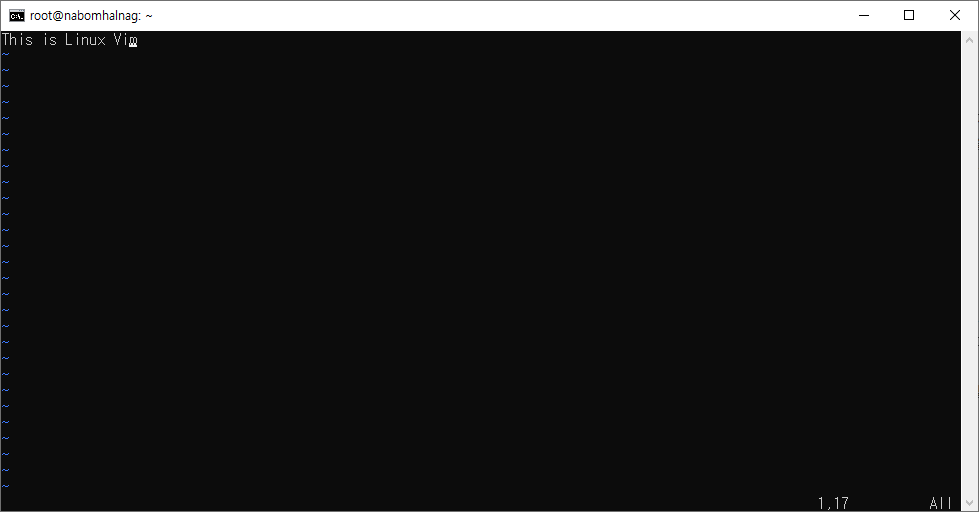
The first is using vim on Linux systems.
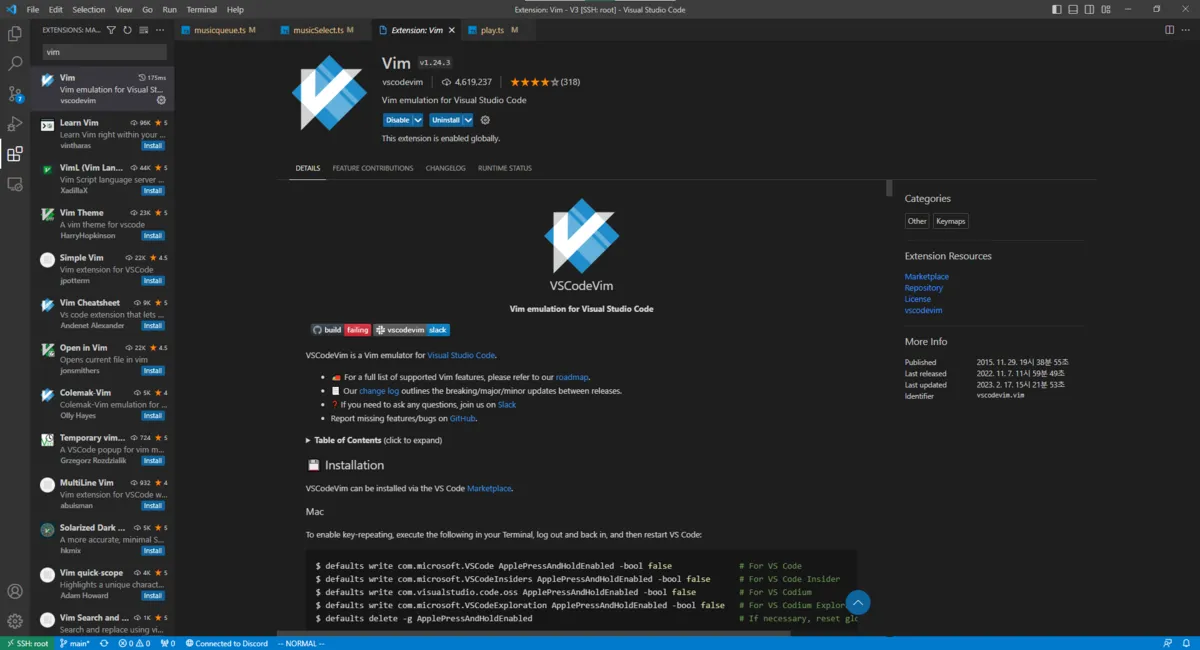
The second is additionally installing Vim in an IDE like VSC.
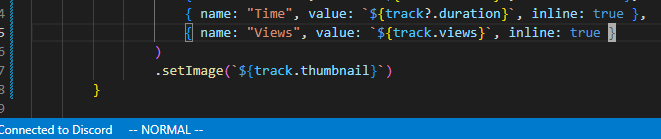
After installing, you can see the cursor has become thick as in the picture above. And looking at the bottom of VSC, --NORMAL-- is the mode. In this mode, keyboard input doesn't type.

Press i or a and you'll see it becomes --INSERT-- mode where you can type again. Press ESC again and it switches back to --NORMAL-- mode.
Basic Vim commands
How to switch between NORMAL mode <-> INSERT mode.
- a : in NORMAL mode, enters INSERT mode starting after the cursor
- i : in NORMAL mode, enters INSERT mode starting before the cursor.
- I (capital i) : enters INSERT mode at the start of the line.
- A (capital a) : enters INSERT mode at the end of the line.
Navigation commands.
- h : left arrow
- j : down arrow
- k : up arrow
- l : right arrow
- 0 : very start of the line
- $ (Shift + 4) : very end of the line
- w : jump forward one word at a time
- b : jump backward one word at a time
- [n]w: repeat n times — 3w means jumping 3 words
- H (capital h) : move to the very top of the screen
- M (capital m) : move to the very middle of the screen
- L (capital l) : move to the very bottom of the screen
- gg : move to the very start of the current file
- G (capital g) : move to the very end of the current file
- [n]G : move to line n — 13G moves to line 13
- ctrl u : scroll up
- ctrl d : scroll down
- { : start of paragraph
- } : end of paragraph
Editing commands
- x : delete the character under the cursor
- dd : delete the whole line at the cursor (cut)
- yy : copy the line (ctrl c function)
- p : paste
- *p : paste from clipboard (needs separate configuration in VSC)
- u : undo
- ctrl r : redo
Advanced Vim usage
The way it works is Command + Object.
- Command : d delete (cut), y yank (copy), c change (unlike the other commands, change switches to INSERT mode when done)
- Object : 3w, 3b, aw (a word), at (a tag), ap (a paragraph), as (a sentence), it, i", ip
- . (dot) : press (dot) to repeat the previous command
Examples)
- d3w: becomes delete 3 words.
- dit: delete inner (inside) tags — deletes everything inside the <> tag.
- daw: delete a word — deletes one word.
- d3w: delete 3 words — deletes three words.
- d2j: deletes 2 lines downward.
- d2k: deletes 2 lines upward.
- df( : deletes up to and including the ( (parenthesis)
- dt( : deletes up to just before the ( (parenthesis)
- d/(sh: deletes up to (sh
Extra usage
- v : select (drag)
- vaw : selects (drags) one word
References
https://www.youtube.com/watch?v=cY0JxzENBJg&t=6s
Original (Korean): tistory — published 2023-02-17, migrated to this blog. This translation was generated with the help of AI.