What is AWS EFS?
EFS (Elastic File System) is a service providing simple, scalable, elastic file storage usable both from AWS cloud services and from on-premise resources.
EFS is highly scalable, shareable file storage for Linux instances: through a Network File System (NFS) mount on an EC2 Linux instance you can access the files you need from within the VPC, or reach files on on-premise servers connected via AWS Direct Connect.
AWS EFS characteristics
Availability
- Created inside a VPC; EC2 accesses it through a file system interface.
- Accessible from multiple availability zones.
- Because data is stored redundantly across several AZs, service continues from another AZ even if one AZ is destroyed.
- Unlike EBS, EFS supports multi-AZ (availability zone) and rides the network, so it is controlled by security groups.
Scaling
- Thousands of EC2 instances can access it simultaneously, and it auto-scales elastically as files are added and removed — i.e. no need to provision capacity in advance.
- Scales up to petabytes of data.
- Up to 1,000 file systems can be created.
Storage classes
Like S3, EFS has storage classes.
- Standard Class: the class used to store frequently accessed files
- Infrequent Access (IA) Class: a class for files stored long-term but rarely accessed
Lifecycle management
- Through lifecycle policies, rarely accessed files are automatically moved to EFS IA (Infrequently Accessed) for cheaper storage.
- For throughput mode, Bursting Mode is recommended for most file systems, but Provisioned Mode is recommended for high-throughput workloads.
- For performance mode, MAX I/O mode is advisable when a very large number of EC2 instances access the file system; General Mode is recommended otherwise.
File mounting
- You can mount via the EFS DNS name and use it from multiple instances simultaneously.
- Like block storage, file storage once mounted behaves like your local file system.
- With EFS you can transfer files from an existing file system using AWS DataSync.
File backup options
- DataSync
- DataSync maintains a persistent connection between on-premise storage and an AWS EFS file system, making it easy to move data between the two.
- DataSync can be used for regularly importing/exporting large volumes of data, one-off data migrations, or data replication and recovery.
- AWS DataSync can also be used for cross-region transfers.
- AWS Transfer Family
- A fully managed file transfer service supporting SFTP, FTPS, and FTP.
- Enables file transfer into and out of AWS EFS.
- The AWS Transfer Family endpoint must be in the same region as the EFS file system.
- AWS Backup
- Automates and tracks backup policies and schedules for AWS EFS.
- EFS to EFS backup
- Automatically creates incremental backups of EFS files
File system policy
- An IAM resource policy applied to all NFS clients using the EFS file system.
- Can enforce settings such as encryption in transit, disabling root access, and read-only access.
VPC & EC2 & EFS hands-on
Before creating the EFS we need to make a Security Group first, because the NFS port must be opened. Rather than modifying an existing security policy, I'll create a new one.
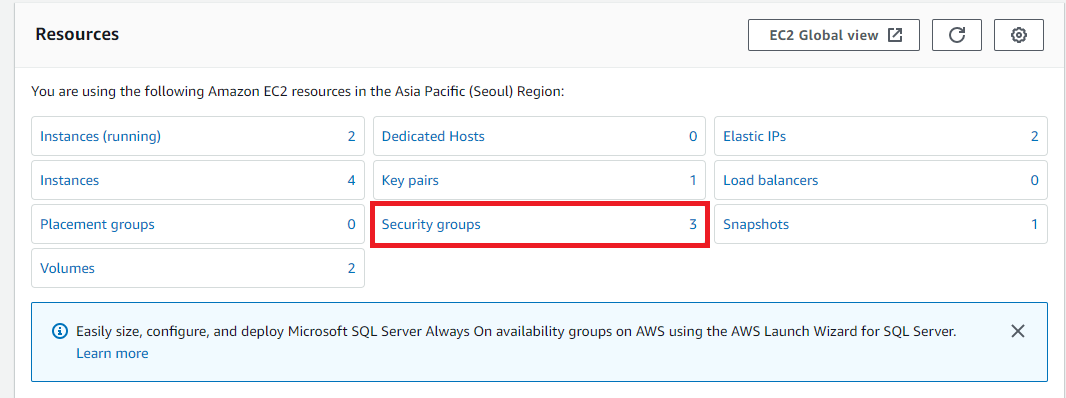
First, go to the EC2 main page, click Security groups, then click Create security group.
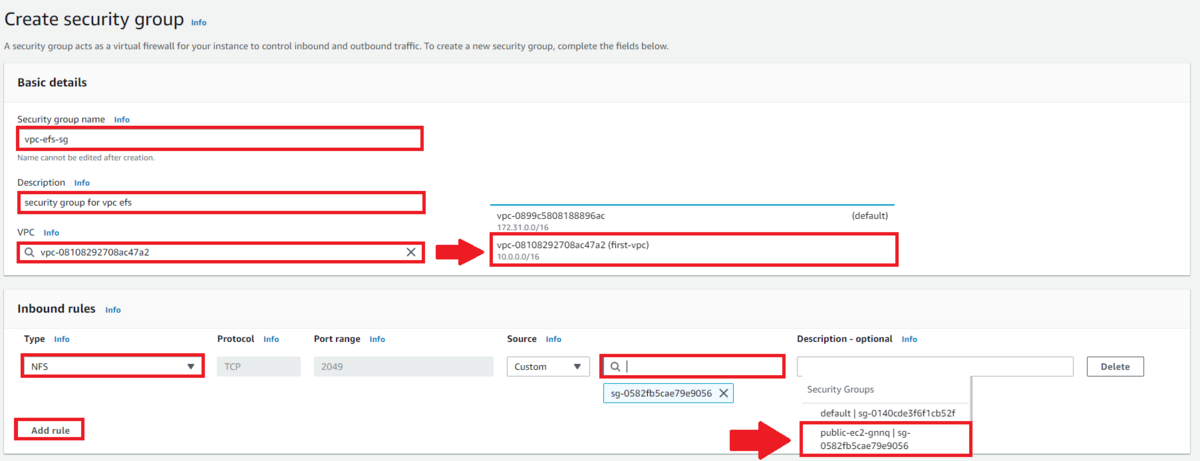
As in the picture above, pick the right VPC, and under Secure select the Security group made earlier. Now let's go configure EFS.
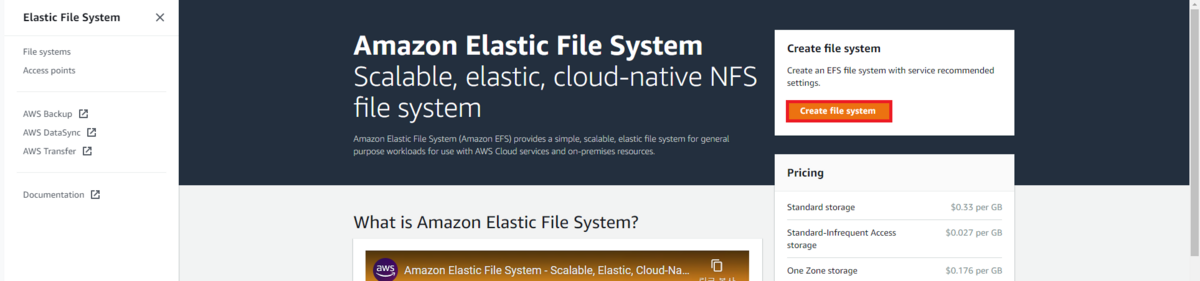
Go in and click Create file system.
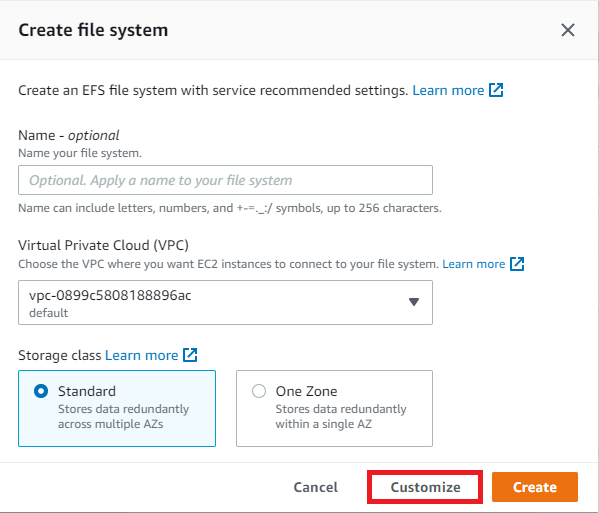
Click Customize.
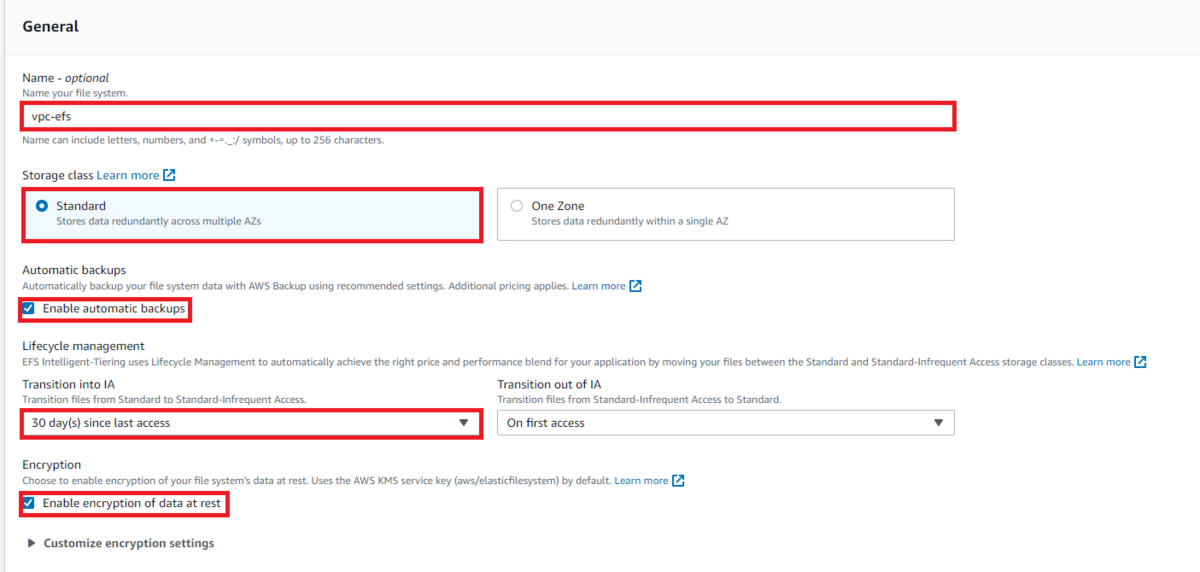
- Storage class
- Standard is the class that makes it usable across multiple AZs.
- One zone is the class that restricts use to a single AZ.
- Automatic backups decides whether to back up automatically.
- Transition into IA sets how long a file must go without access before being moved to the IA class.
- Transition out of IA sets when files transition back from the IA class to the Standard class.
- Encryption sets whether to protect the data held in the EFS file system.
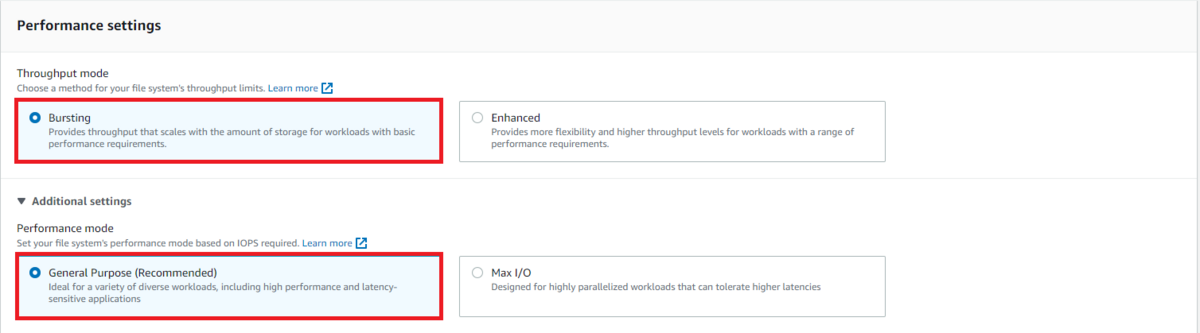
- Performance mode sets the file system's performance based on IOPS. Choose Max I/O when you need high throughput in certain cases.
- Throughput mode sets the file system's throughput. Use Bursting when handling momentary spikes in volume.
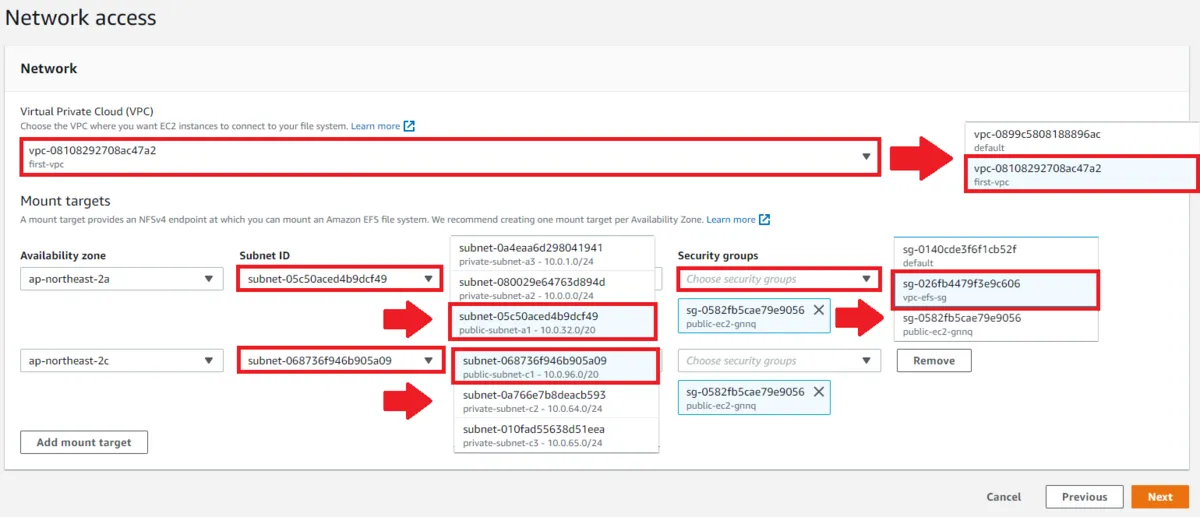
Set the VPC and carefully pick the Subnet IDs that will use the EFS file system. Then select the vpc-efs-sg Security Group created earlier. Skip the next screens. Now click the created EFS, then Attach at the top right.
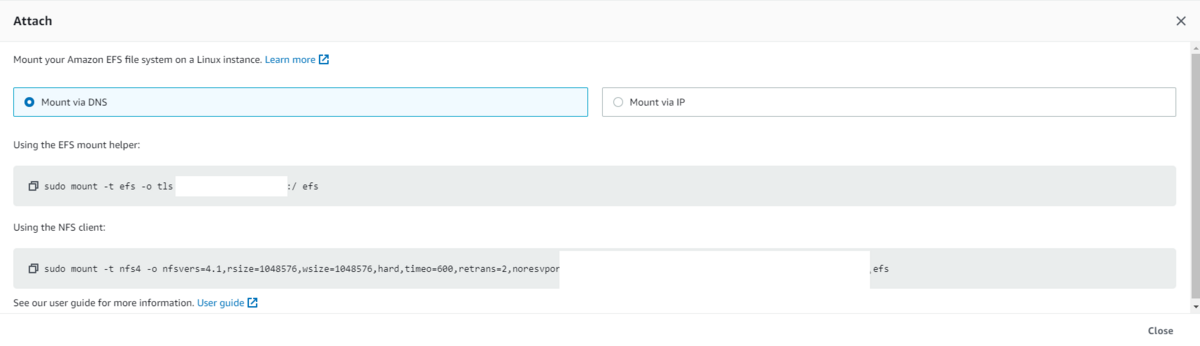
With amazon-efs-utils you can mount it on EC2 using the command above.
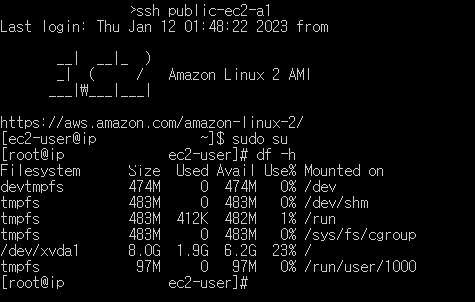
Now connect to EC2 and type df -h — you'll see it isn't mounted yet. Go into /var/www/html and create a directory called efs. Then run the Attach command we found earlier.
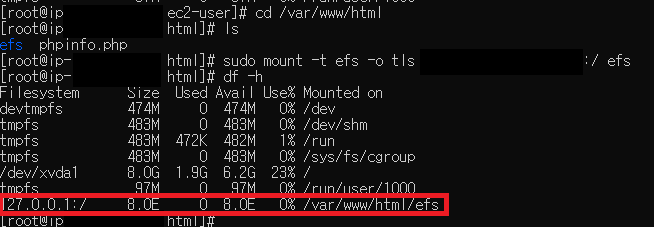
Checking with df -h afterwards, you can confirm it's mounted. For testing, let's go into the efs directory and download the index.html we uploaded to S3 last time.
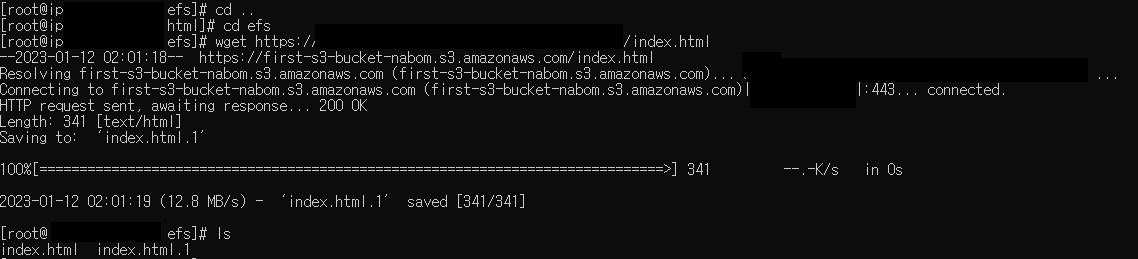
You can see it downloaded fine. Now open the website and hit /efs/index.html to check it renders.
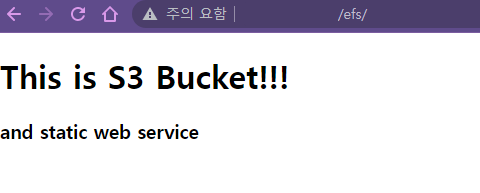
Confirmed it loads fine. Now let's mount the same EFS file system on the other c1 server, check the file contents, and open the website from there too.
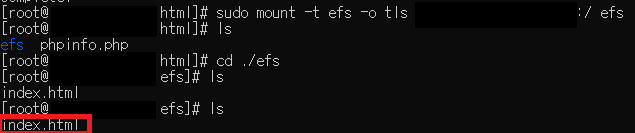
Even on an EC2 in a different AZ, the mount works because we allowed it in the EFS network settings — and the index.html downloaded on the a1 server is right there.
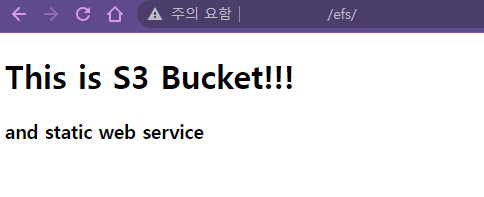
It loads just as well. Now let's tweak index.html a bit and check that the change applies in real time.
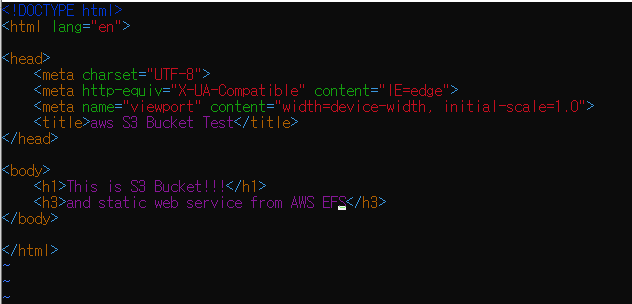

We confirmed it applies in real time perfectly.
Sources
Original (Korean): tistory — published 2023-01-12, migrated to this blog. This translation was generated with the help of AI.